


You set up an AI workflow to handle your weekly pipeline review. It’s supposed to pull deals from your CRM, flag anything stalled, draft a summary, and post it to Slack. You kick it off and step away.
Three minutes later: “Do you want to allow this Notion query?” You approve it. Two minutes later: “Do you want to allow this Slack message?” You approve it. Then: “Do you want to allow this CRM update?” Three more approvals follow in the next five minutes.
By the time the workflow finishes, you’ve approved eleven actions. A task that was supposed to run while you did something else pulled you out of focus seven times. You might as well have just done it yourself.
This is the approval-fatigue problem with agentic AI that nobody mentions in the demos. And until last week, Claude Code gave you exactly two ways to handle it — neither of them designed for real business work.
TL;DR
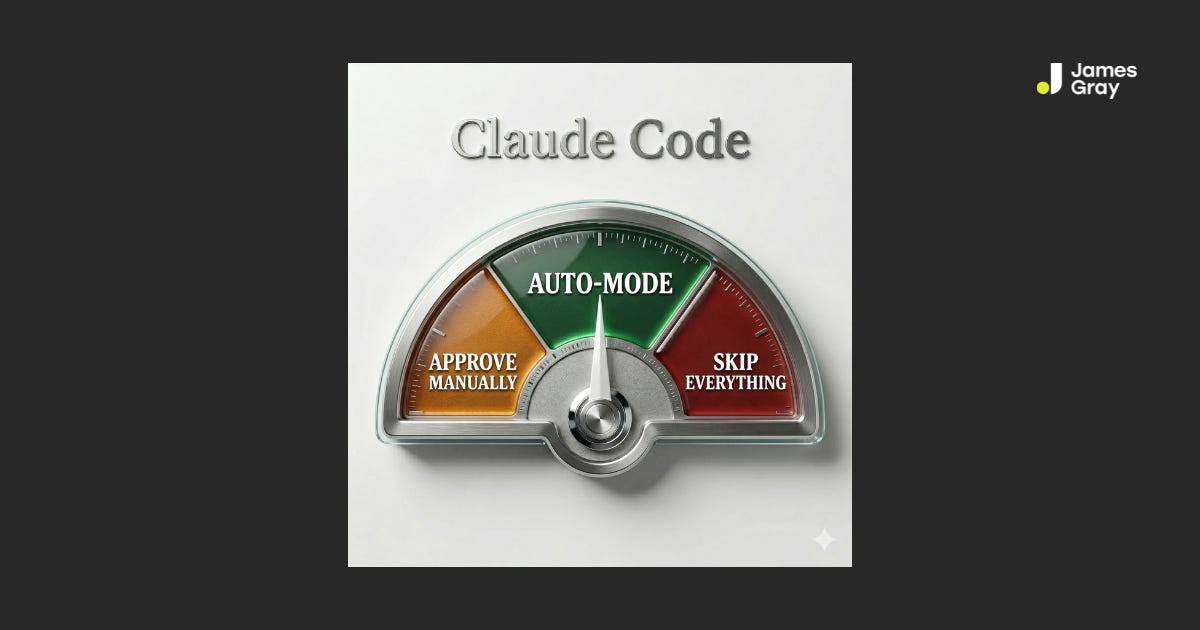
Claude Code shipped auto-mode on March 24 — a new permissions setting between “approve everything” and “skip everything”
Before each tool call (Notion, Slack, Gmail, CRM, Sheets — any MCP connection), a classifier decides if it’s safe to proceed automatically or risky enough to block
Low-risk actions execute without interrupting you; potentially destructive actions get blocked before they run
This is the thing that makes business workflows actually autonomous — not just automated with a human stuck in the approval loop
It’s a research preview for Team plan users now; Enterprise and API users get it in the coming days
Honest limitation: the classifier isn’t perfect, and Anthropic still recommends isolated environments for now
The All-or-Nothing Problem (Before Auto-Mode)
If you’re running Claude Code with MCP connections to your business tools — Notion, Slack, Gmail, HubSpot, Google Sheets — you’ve been living with a frustrating binary.
Option A: Default mode. Every MCP tool call asks for approval. Claude wants to read a Notion database? Approve. Write a new record? Approve. Send a Slack message? Approve. Update a deal stage in your CRM? Approve. The workflow is safe. It’s also not autonomous in any meaningful sense. You’re the approval layer, which means you’re still doing the work — just with extra steps.
Option B: --dangerously-skip-permissions. No approvals, ever. Claude runs from start to finish without checking in. This sounds like the autonomous workflow you wanted until you think about what you’ve traded: any ability to catch a mistake before it executes. Mass-delete the wrong Notion records? Send a draft Slack message to the wrong channel? Write junk data to a production CRM? You find out after the fact.
The flag is named --dangerously-skip-permissions for a reason. Anthropic isn’t being dramatic. For workflows touching real business data and real communication channels, skipping permissions entirely is a bad bet.
Neither option is actually right for how you want to use Claude Code as a business operations tool. Default mode is too slow. Skip-permissions is too reckless. The gap between them is where the real frustration lives.
What Auto-Mode Actually Does
Anthropic shipped auto-mode on March 24 as a research preview for Team plan users. The mechanism is straightforward: before each tool call runs, a classifier reviews it.
The classifier categorizes the action — safe or risky — and routes accordingly:
Safe actions proceed automatically. Reading records, writing standard updates, and posting messages within normal parameters. Claude keeps moving without interrupting you.
Risky actions get blocked. The classifier flags potential problems — bulk deletes, data exports to unexpected destinations, actions that appear destructive — and redirects Claude to find an alternative approach.
Persistent blocks surface a prompt. If Claude keeps attempting actions that keep getting blocked, it eventually surfaces a permission request to you. The system doesn’t silently fail — it escalates when it actually needs to.
That last point matters. Auto-mode isn’t binary. It’s a dial. The classifier handles the routine. You get pulled in when there’s genuinely something to decide.
For a business operations workflow, this changes the picture entirely. A pipeline review that used to ping you 11 times now runs to completion with 1 or 2 meaningful check-ins. A daily brief that pulls from Notion, summarizes it, and posts to Slack actually executes while you’re in your first meeting of the day. The approvals that do come through are the ones that actually warrant your attention.
What This Changes for Business Operations
The operations workflows I see leaders building — and wanting to build — are exactly the category auto-mode unlocks.
Think about the kinds of tasks that make sense to delegate to Claude Code with MCP connections:
Pull data from a CRM or spreadsheet, identify exceptions, draft a report, and post it to a Slack channel
Monitor an inbox, triage inbound requests, update a Notion tracker, and draft responses for review
Scan a project management board, flag overdue items, update statuses, and send a summary to stakeholders
Reconcile meeting notes against a Notion database, extract action items, and create task records
Every one of these workflows involves multiple sequential tool calls. In default mode, each call is an interruption. That makes the workflow feel more like a demo than a deployment — something you’d show to impress someone, not something you’d actually rely on to do work while you’re busy doing other work.
Auto-mode is what makes these workflows real. Not impressive. Real.
The permission-fatigue problem isn’t just about convenience — it’s about what happens to your attention when approvals are required for everything. When you have to approve every low-stakes action, you stop carefully reviewing the approvals. Everything becomes a quick click. And that’s the moment you’re most likely to miss the one approval that actually matters.
Matching the approval friction to the actual risk of the action is how you build a system where human judgment shows up where it’s worth something.
The Junior Operator Analogy
Here’s the mental model I keep coming back to.
Think about how a strong operations coordinator handles delegated work. They handle the standard decisions — updating the tracker, sending the routine check-in, filing the document where it belongs — without asking you every time. That’s not because they’re unsupervised. It’s because the trust level for those decisions is already established.
But they bring you in on things that are outside their lane: a message that doesn’t have an obvious right answer, an action that could be hard to undo, a decision where they genuinely aren’t sure what you’d want. The judgment about what to escalate is itself a skill — and a good coordinator gets it right most of the time.
Auto-mode is Claude Code developing that judgment for MCP tool calls. It’s not unlimited autonomy. It’s calibrated autonomy, matched to the actual risk of each individual action. The routine proceeds. The genuinely uncertain gets flagged.
That’s the working relationship you want with an AI system doing operations work — not “check with me constantly” and not “never check with me.” Something in between, calibrated to what actually warrants a decision.
What Auto-Mode Can’t Do (Being Honest)
Auto-mode is a research preview. That’s not a disclaimer to skip — it matters for how you use it.
The classifier isn’t perfect. Anthropic says this directly: some risky actions will slip through when intent is ambiguous, or when Claude doesn’t have enough context about your environment to recognize additional risk. Some benign actions will also get blocked. The system is good, but calibrate your expectations accordingly.
It reduces risk compared to --dangerously-skip-permissions — it doesn’t eliminate it. Anthropic explicitly recommends using auto-mode in isolated environments. If you’re running it against production Notion workspaces, live CRM data, or active communication channels — the calculus hasn’t shifted as much as you might think. Start with test environments, read-only connections, or low-stakes workflows while you build a feel for how the classifier behaves.
There’s a small cost. The classifier runs before each tool call, resulting in additional token consumption and marginal latency. For most business workflows, this is negligible. Worth knowing it exists.
Admins can disable it. For team deployments, this is important: administrators can turn off auto-mode entirely with "disableAutoMode": "disable" in managed settings. If you’re planning to roll this into team workflows, check with whoever manages your Claude Code deployment first.
The Bigger Pattern: Autonomy Is a Dial, Not a Switch
Here’s the practitioner take that applies well beyond auto-mode.
Most business leaders think about AI autonomy as a binary: either you’re in control, or the AI is. Either you approve everything, or you trust it blindly. That framing produces exactly the two bad options we started with.
The more useful mental model: autonomy is a dial, calibrated to the actual risk of individual decisions. Some decisions are low-stakes and should proceed automatically. Others warrant human judgment. A well-designed system knows the difference.
Auto-mode is the first serious implementation of this in Claude Code. And it points to a principle that should shape every AI workflow you build or oversee.
When you’re connecting Claude Code to your business tools via MCP — Notion, Slack, Gmail, HubSpot, Google Sheets, whatever your stack looks like — the autonomy question is always present. How much should the agent decide on its own? When should it check in? What constitutes an action that actually requires a human?
The wrong answer is “always check in” (you’re the bottleneck, there’s no leverage) or “never check in” (the risk is unmanaged, the accountability is gone). The right answer is: match autonomy to actual decision risk. High-frequency, low-stakes tool calls proceed automatically. Novel situations, irreversible actions, and genuinely ambiguous contexts surface human judgment.
Auto-mode operationalizes this for MCP tool calls. Your job, as someone building or managing AI-connected business workflows, is to operationalize it across your entire workflow design. That’s not a technical question — it’s a judgment call about which decisions actually require you.
How to Get Started
Auto-mode is available now as a research preview for Claude Team plan users. Enterprise and API users will get access in the coming days.
To enable it from the CLI:
claude --enable-auto-modeThen cycle to it using Shift+Tab within a session.
On Desktop or in the VS Code extension: Auto-mode is disabled by default on the desktop app, so you’ll need to enable it first. Go to Settings → Claude Code and toggle auto-mode on. Once enabled, you can select it from the permission mode dropdown within any session.
Works with: Claude Sonnet 4.6 and Opus 4.6.
My recommendation: start with a workflow with low stakes and a clear scope. A Notion query that reads but doesn’t write. A summary workflow that drafts a Slack message for your review instead of sending it directly. Get a feel for what the classifier flags and what it passes. Build your own calibration for when to trust it before you put it in front of anything consequential.
That’s the same principle I teach in my agentic AI work: don’t assume the system’s judgment is right for your context. Observe it, then extend trust incrementally.
If you’re building business operations workflows with Claude — and you want a structured way to set up skills, agents, and MCP integrations that actually run your business — that’s exactly what we build in Claude for Builders. The next cohort starts on April 13th.
Stay curious. Stay hands-on.
James