


Welcome back to the Playbook. If you’ve opened Claude in the past few weeks and noticed the message box, settings, or projects looking different, this edition is for you. Anthropic has changed the Claude platform a lot since late August, and most of it landed without much fanfare.
I’ve gone through the launch posts, the help center, the desktop changelog, and my own account, and pulled out the updates that matter if you build with Claude. For each one, you get what changed, why it matters, and a 15-minute thing to try. The aim is to keep you productive on the platform you’ve already invested in.
TL;DR
One Claude. Starting September 16, chat and Cowork are one conversation, rolling out plan by plan. Describe the outcome, and Claude decides whether it is a quick answer or a multi-step task.
One memory. Memory now carries across chats and cloud tasks. A new “sensitive topics” setting is off by default, and it never saves four categories.
One place your work lives. Since October 6, every new task on Pro and Max runs in Anthropic’s cloud. Your local folders stay on your machine. A project can also read synced sources such as GitHub and Drive from any device.
Projects changed shape. A project is no longer a folder on your computer. The folder is linked context, and each old project now offers to move its files to the cloud as a one-time upload that is not kept in sync.
Next step. Five things to check this week, listed under each section.
Six weeks ago, using Claude for real work meant choosing a tool before you started. Chat for a question, Cowork for a task, Design for a visual, and memory that didn’t follow you between them. Anthropic has collapsed that into one product in three releases: unified memory on August 25, the Cowork and chat merge on September 16, and cloud execution for every task on October 6. Projects changed shape along the way.
Each release is small on its own. Together, they change how a leader should set up Claude, what to tell a team about where data goes, and what a task costs. This edition covers the four changes, what each one means for a business user, and a 15-minute thing to try for each. Every claim below comes from Anthropic’s help center, launch post, or changelog, linked where it appears and listed again at the end.
1. Chat and Cowork are one Claude
What changed. The “Chat” and “Cowork” selector in the message box is gone. Anthropic’s help page on the merge has the full rundown, and here is the short version. You describe the outcome, the format you want, and the inputs Claude needs. Claude decides whether that is a two-line answer or a task that searches the web, reads your files, runs code, and returns a finished document, spreadsheet, or slide deck. Anthropic’s stated reason in its launch post: people used both and found deciding where a task belonged frustrating.
Longer tasks keep running after you close the laptop and show up on your phone, where you can answer a question or redirect the work. Several tasks can run at once. Claude Docs and Claude Slides launched in beta the same day, so a report and its matching deck can come out of the same conversation, and you can schedule the whole thing to repeat every Monday.
Why it matters. There is one product to roll out, one to teach, and one to govern. Any conversation can now turn into a task that runs while you’re in a meeting, which is where the time savings come from, and also why the next two controls matter.
One new control. In the prompt window, next to where you type, you pick how much Claude does before checking with you. Manual is the default: Claude asks before each action. Auto lets it work through the task with automated safety checks and no interruptions. It applies to the whole conversation, and you can change it any time. My advice is to start on Manual. You learn a lot about what Claude is doing on your behalf by watching it ask. In either case, Claude asks before permanently deleting any file.
The cost to know. Everything counts toward the same plan usage limit, and a task that searches, reads files, and writes a deck uses more of it than a chat reply. You can see usage in Settings > Usage, and it’s worth a look after the first week.
What carries over. Existing Cowork tasks, projects, connectors, skills, and files all move with you. Two things moved location. Cowork’s global instructions were folded into Instructions for Claude in Settings > Account (Anthropic’s help page calls it Settings > General), so if you had instructions in both places, you now have one set, and every conversation reads it. And Cowork tasks now sit in Recents alongside chats. The web search toggle is gone, since Claude searches when it helps. Research runs from /deep-research or the “+” menu.
Who has it. Pro and Max first, rolling out gradually, so two people on the same plan can see different versions. Team and Free follow “soon” with no date. Enterprise admins get at least 30 days’ notice, and they choose when to enable the Docs, Slides, and Design betas. For organizations that manage Claude Desktop centrally, the desktop changelog names November 10 as the date the unified experience turns on for every organization. Once an account has the new experience, you can't go back to separate Chat and Cowork.
Try this (15 minutes). Open Settings > Account and read your Instructions for Claude from top to bottom. The rules you wrote for Cowork tasks, such as where to save files or which format to produce, now apply to quick answers as well, and the rules you wrote for chat now apply to tasks. Resolve anything that conflicts. Then find the permission control in the prompt window and leave it on Manual for a week before you decide.
2. One memory across chat and tasks, with new controls
What changed. Memory is now a single store that chat and cloud tasks both read and write. Anthropic’s memory help page covers every control; the key ones are below. Claude saves memory as individual topics during the conversation, not as a summary written afterward, and you can ask it to “remember this” explicitly. Everything saved appears as a list of topics in Settings > Memory, where you can read, edit, or delete each one.
Each Claude Project keeps its own memory, separate from other projects and from general chats. A task that ran only on your computer keeps its memory with that task. Memory is fixed when a chat or task starts, so any changes you make apply from your next conversation.
The sensitive topics setting. This is new and worth understanding before anyone on your team turns it on. By default, Claude doesn’t save health, race, ethnicity, religion, politics, gender identity, or similar subjects to memory. A setting called “Include sensitive topics in memory” turns that on going forward. Every save on a sensitive topic then shows a notice above the message box so you can review it. Turning the setting off deletes the sensitive items already saved.
Four categories are never saved, even if you ask: government ID numbers, criminal history, financial account numbers, and immigration status. Anthropic’s rationale, as it told Engadget: “what some consider sensitive, others may consider useful for Claude to remember.” The decision sits with the user, not the admin.
For Team and Enterprise. Owners enable memory in Organization settings > Capabilities, and each member stays off until they opt in. Enabling memory doesn’t enable sensitive topics; each user opts into that separately. Owners can’t view or edit anyone’s memory. Turning memory off at the organization level immediately and permanently deletes every user’s memory data. Memory is unavailable to organizations with HIPAA, public-sector, or custom data-retention agreements.
Two details worth knowing. Deleting a conversation doesn’t delete the memory entries it created. Those are deleted individually from the topics list. Memory is included in data exports, so an export now contains what Claude has learned about you, as well as what you typed.
Try this (15 minutes). Open Settings > Memory and read the topics list from start to finish. Delete anything you wouldn’t want in a data export. If you run a Team or Enterprise plan, decide the org-level memory policy before the merge reaches your organization, because the off switch is permanent.
3. Your work now runs in the cloud
What changed. As of October 6, every new task on Pro and Max runs on Anthropic’s servers, not on your computer. Anthropic’s page on Cowork across web, desktop, and mobile spells out the rules, and they are fair ones. The “Only on your computer” option was removed from Settings > General. Anyone still set to local was moved to the cloud the next time they opened the desktop app, with a notice, and the move can’t be reversed.
Work already in progress stays put. Tasks you started on your computer before October 6 stay there until you finish them, each with a banner saying it runs only on this computer. Scheduled tasks that already run on your computer keep running there. New scheduled tasks run in the cloud.
In practice, a new session and its files are identical on desktop, web, and mobile. Start on your laptop, check on your phone, and finish on the web. Cloud scheduled tasks run even if no device is online. You get a phone notification when Claude finishes or needs you.
Where your files go. Local folders stay on your computer. Claude reaches only the folders you have connected, only through the desktop app, and only while the app is open. When a cloud task needs a file from one of those folders, Claude fetches a copy of that single file and nothing else. Deleting the session deletes the copies under the normal retention practices. Whether conversations help train models still depends on the “Help improve our AI models” setting in Settings > Privacy.
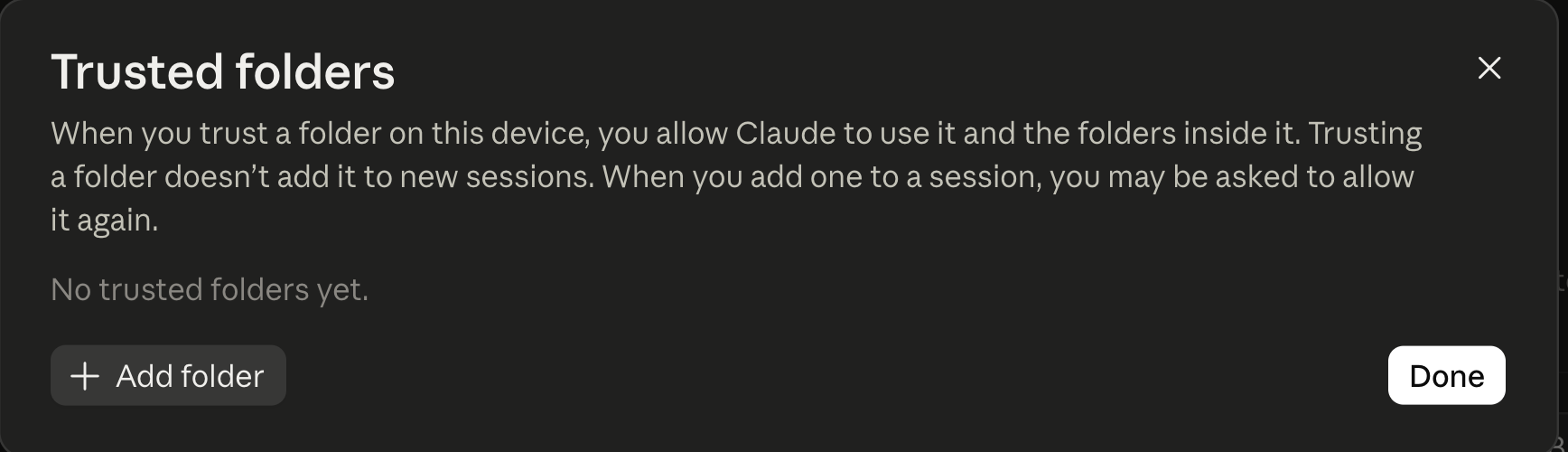
Trusted folders are a separate list. Under Settings > General, the Tasks section lets you manage trusted folders. Trusting a folder on a device lets Claude use it and the folders inside it without asking each time. It doesn’t add the folder to any session or project, and Claude may still ask when you add it to a session. Which folder a project reads is set in that project’s Context, covered next.
Three ways to give a task your files. Open any project, select Add next to Context, and the menu shows the three kinds of sources a cloud task can read.
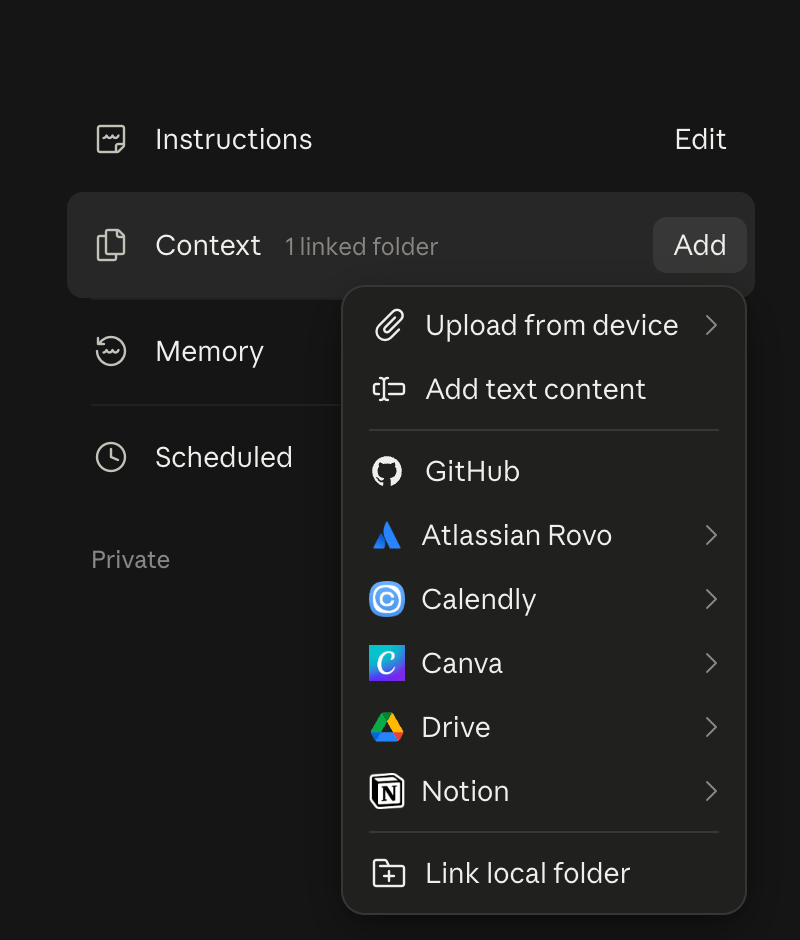
Uploads. Files or pasted text, stored with the project. A copy, frozen at the moment you added it.
Synced sources. A GitHub repository, Google Drive files, a Notion workspace, or another connected app. The project shows “Synced” with a time. A GitHub source pulls the latest version when you select Sync. Drive files refresh automatically when you open the project and can be added only to a private project. Either way, the content is the same on desktop, web, and phone.
Linked local folders. Desktop only. The folder stays on your computer, carries an “Only you” badge, and is readable while the desktop app is open on that machine. This option doesn’t appear in the web menu.
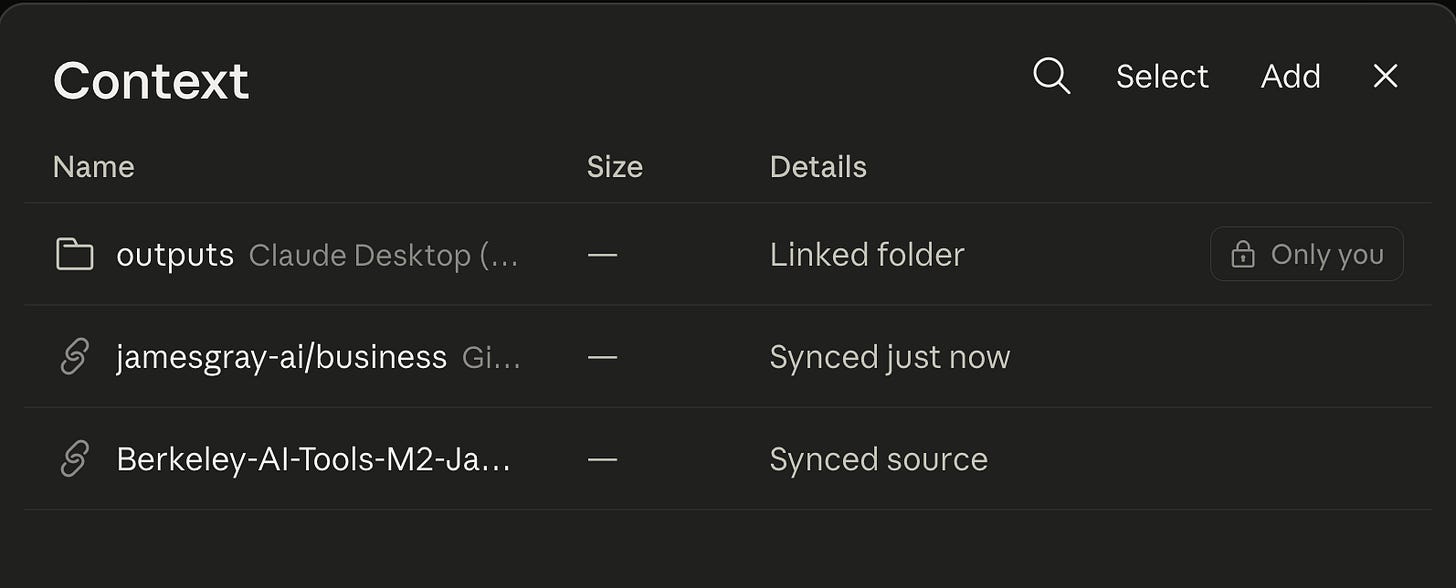
For a builder, use the synced source. My own knowledge graph lives in a GitHub repository, and that’s the “Synced just now” line in the screenshot above. A knowledge graph of Markdown files, or any Markdown file that lives in a GitHub repository, is available to every task on every device. One click on Sync pulls in your latest commit, and you don't have to copy anything into the cloud by hand. The local folder remains the right choice for files that can’t leave the machine.
What still needs the desktop app. Local file access, local connectors, driving a browser, and computer use. A cloud session can use them only while the desktop app is open on that computer. Close the app, and the session keeps running but loses local access.
If work has to stay on your machine. Anthropic’s answer, in the same page, is Claude Code in the desktop app, which keeps folders and history local. A Cowork task can be moved across: open it, select “Download task data,” unzip the download, open the folder in Claude Code, and run /port-task-data. To keep a copy of everything, select “Export your Cowork data” on the card on the desktop home.
Try this (15 minutes). Open Settings > General and select Manage next to Trusted folders. Remove any folder you’d rather Claude ask about each time, and don’t trust a folder that holds files you wouldn’t want copied into a cloud task. Then pick one working folder you reach for from your phone and add it to its project as a synced source instead.
4. Projects: your folder can stay linked or move to the cloud
What changed. A Cowork project used to be a folder on your computer. You created the project from the folder, and the project lived there. New projects are saved to your Claude account, and a folder is one kind of context inside them, listed under Context as a linked folder next to uploads and connectors. The project still holds the same things: instructions, context, scheduled tasks, and its own memory, separate from every other project. Anthropic’s projects help page walks through each one.
Open a project that was built on a local folder, and you get a decision. Under the linked folder sits a card titled “Move folder to the cloud,” with three choices: Move folder, Learn more, and Keep folder linked. Nothing moves until you say so.
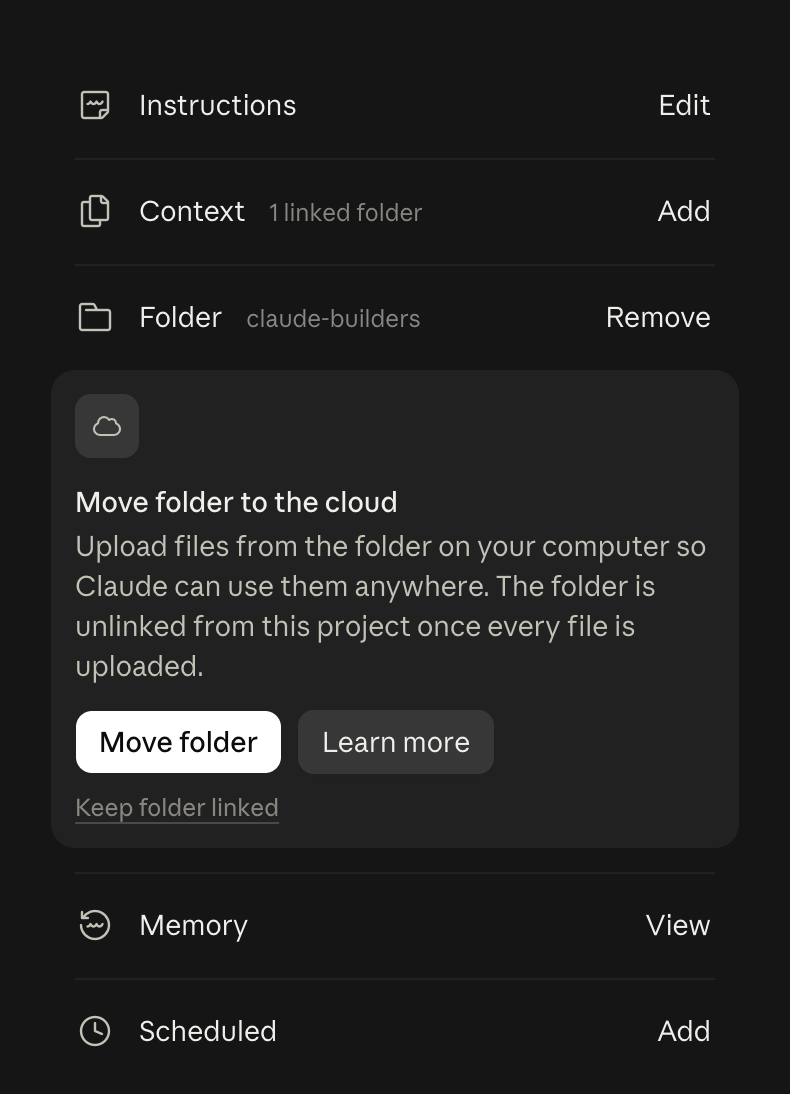
What “move” means. Learn more opens a dialog that states the terms. It counts the files that will be uploaded to the project. The upload is one-time and not kept in sync. The folder is unlinked from the project once all files are uploaded. It excludes hidden files, dependency and cache folders, and files over 30 MB. It also shows how much of the project’s capacity is already used, since the uploaded files count against the project’s limit.
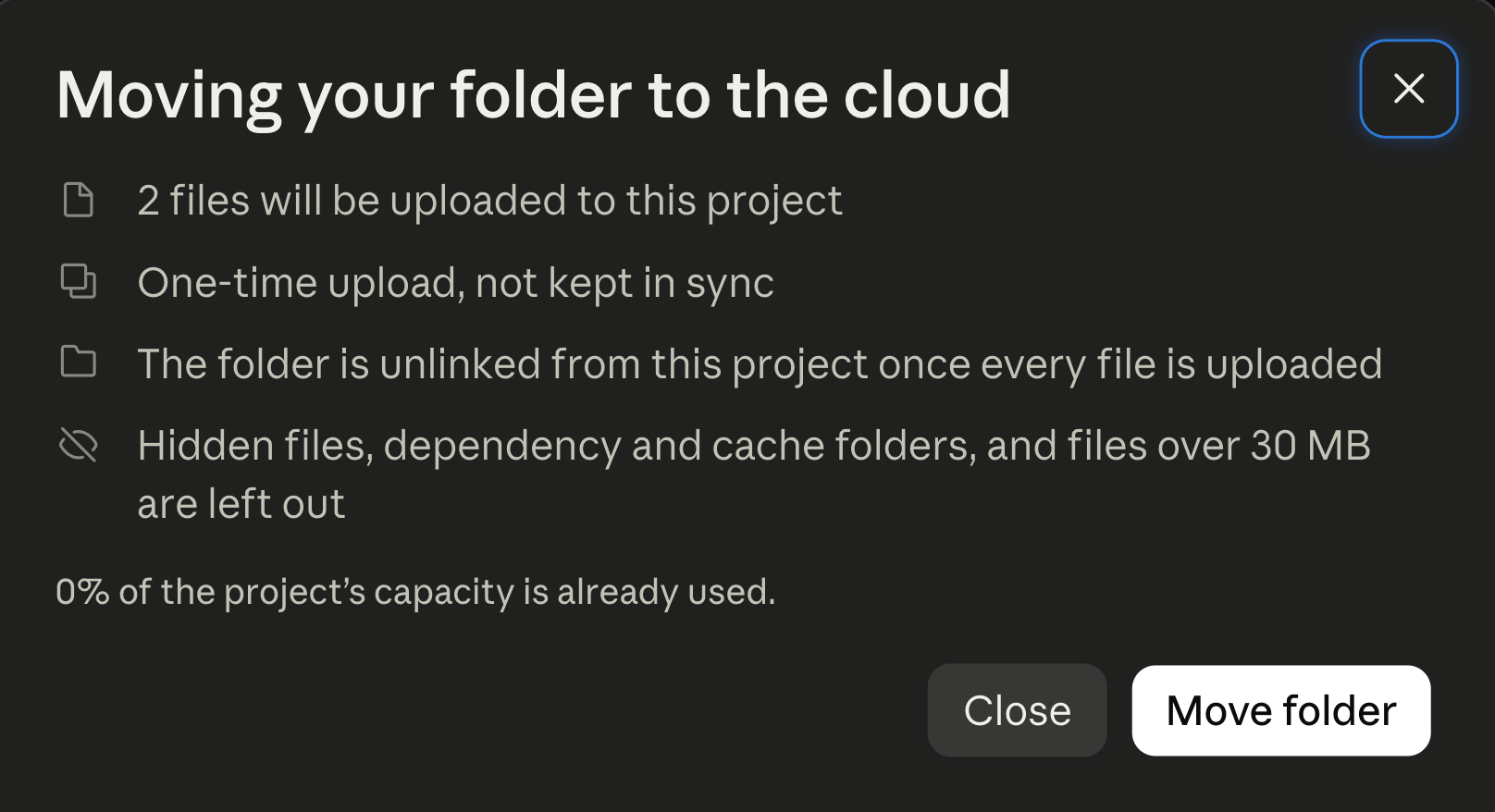
How to decide. The upload is a snapshot, so the question is whether the folder changes. A folder of reference material that is finished, such as a style guide, a set of templates, or last year’s reports, can move, and Claude can use it from the web and your phone. A folder that keeps changing, such as a knowledge graph or a working client folder, has two good homes. Keep it linked, or put it in a synced source such as a GitHub repository or Google Drive, which you can refresh with one click and access from every device. Moving it with the card is the one choice to avoid, since the project would read a copy that stopped updating the day you moved it. Keep folder linked means Claude reaches the folder through the desktop app while it is open. A cloud task fetches a copy of a single file when it needs one.
One more thing to check. Since the October 5 desktop update, a regular chat in a project can read the project’s linked folder. Before that, only a task could. A folder you linked before that update isn’t picked up automatically. Link it again and start a new chat.
Try this (15 minutes). Open each project built on a folder and make the call on the card. Move the folders that are finished. Keep the ones you edit linked, and confirm the link by asking Claude in a new chat to list the files it can see.
Five things to check this week
Settings > General. Under Tasks, trust only the folders you’re comfortable a cloud task copying from.
Settings > Account. Read Instructions for Claude.
Settings > Memory. Read the topics list. Decide on sensitive topics. Set the org policy if you own one.
The prompt window. Pick Manual or Auto for the conversation you’re in.
Each project’s Context. Move finished folders to the cloud. Keep the ones you edit linked, or sync them from GitHub or Drive.
If something here doesn’t match what you see in your account, leave a comment. The rollout is gradual, and your screen may be ahead of mine.
Build with me. I love building with interesting people from all over the world, and the next chance is coming up. Agentic AI for Claude Builders Cohort 8 starts November 9: five weeks, built on your own workflows, on the Claude you just read about. Join the cohort and let’s build together.
Stay curious. Stay hands-on.
James
Read more from Anthropic
Cowork is now Claude, the launch post
Claude Cowork and chat are one Claude, the help page on the merge
Use Claude’s chat search and memory, including sensitive topics and admin controls
Use Claude Cowork on web, desktop, and mobile, including the October 6 cloud changes
Using the GitHub integration, how repository sync works
Google Drive connector, how Drive files behave in projects